Anysphere · Code editor
Cursor + Motion
The AI-first code editor, where MCP servers are declared in a JSON file and appear in the agent's tool list. Point it at Motion and one sentence becomes a finished animation, rendered in your own browser.
Setup
Connect Cursor to Motion
One endpoint, no key and no account. This is the part that differs between clients — a different file in a different place, and half of them name the same field differently. Pairing, underneath, works the same way wherever you are, and there are two of those depending on whether you have Motion open.
MCPhttps://motion.frapea.com/mcp
- 1
Create the config
For one project,.cursor/mcp.jsonin its root. For every project,~/.cursor/mcp.json. A remote server needs notypefield — just the URL..cursor/mcp.json{ "mcpServers": { "motion": { "url": "https://motion.frapea.com/mcp" } } } - 2
Check the tools arrived
Settings → MCP should list Motion with its tools. If it does not, reload the window — Cursor reads this file on startup.
Then, the same for every client
Pair the session with Cursor
Two ways in, and the only thing that decides between them is whether you have a Motion tab open right now. Neither needs a key or an account.
If Motion is already open
Carry the code to your agent
- 1Click Connect MCP, top right. The panel shows a line beginning
Connect me to Motion with code, with eight characters likeK7M4-P2Q9. - 2Paste that whole line into your agent — the sentence, not just the code. It is worded so the agent knows which tool to call and what to pass it.
- 3Good for ten minutes, and once. The code stops working the moment it is spent.
If it is not
Let the agent start without you
- 1Say start a Motion session for me. Worded so it does not collide with the line above — that one carries a code, and an agent given the same words without one will try it, fail, and have to back out.
- 2It can compose immediately — you do not need the tab to exist yet. Open the link when you want to watch, or when it asks you to.
- 3Anything that has to SEE the result, or touch your photos, waits for that tab. The agent knows to wait rather than to nag.
Then say what you want in one sentence. The frames appear in the tab while you keep working wherever you were.
When it doesn’t take
Two things go wrong, and it is almost always one of them
mcp.json at startup. Reload the window. Check you edited .cursor/mcp.json in the project you have open, not another one.type field. A remote server in Cursor takes the bare url and nothing else — "type": "http" is VS Code's shape, and configs get copied between the two.Neither of those? The endpoint answers a plain tools/list over POST. If that comes back, the server is fine and the problem is in the config — paste this page into Cursor and let it work out which line.
What it gets you
Why this pairing, and not just any of them
The config can live in the repository rather than in your home directory, which is the difference between setting this up once and setting it up on every machine.- The animation is built from the same context as the code — Cursor can read the component it is going to sit next to and match its type and colours.
- Project-scoped config means a repository can carry its own Motion connection, so anyone who clones it gets the same tools with no setup.
- Cursor asks before each tool call by default, so the first time you hand a render surface to an agent you can watch what it does with it.
What you just handed it
19 tools, and one of them is looking at the result
Cursor now has the whole set: it writes the composition as code rather than filling in a template, renders real frames and checks them, and never has to receive your footage to know what is in it.
All 19 tools Cursor can callWhat comes back
One sentence to final animation
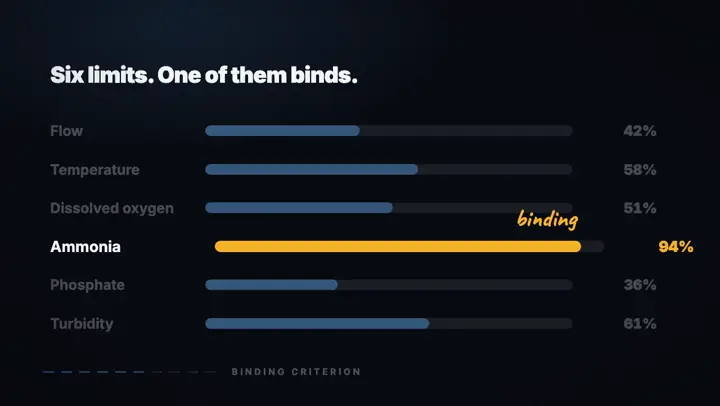
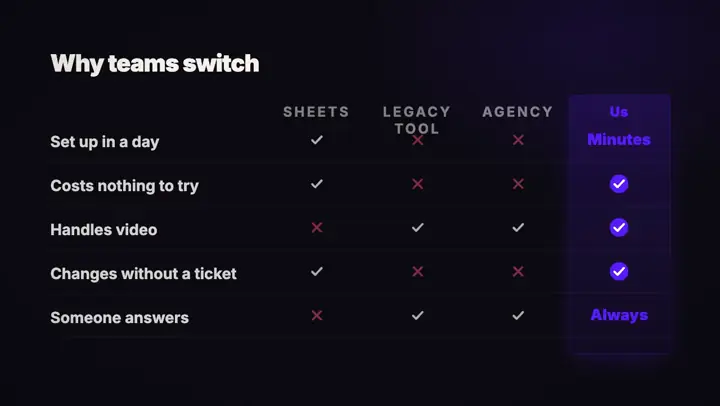
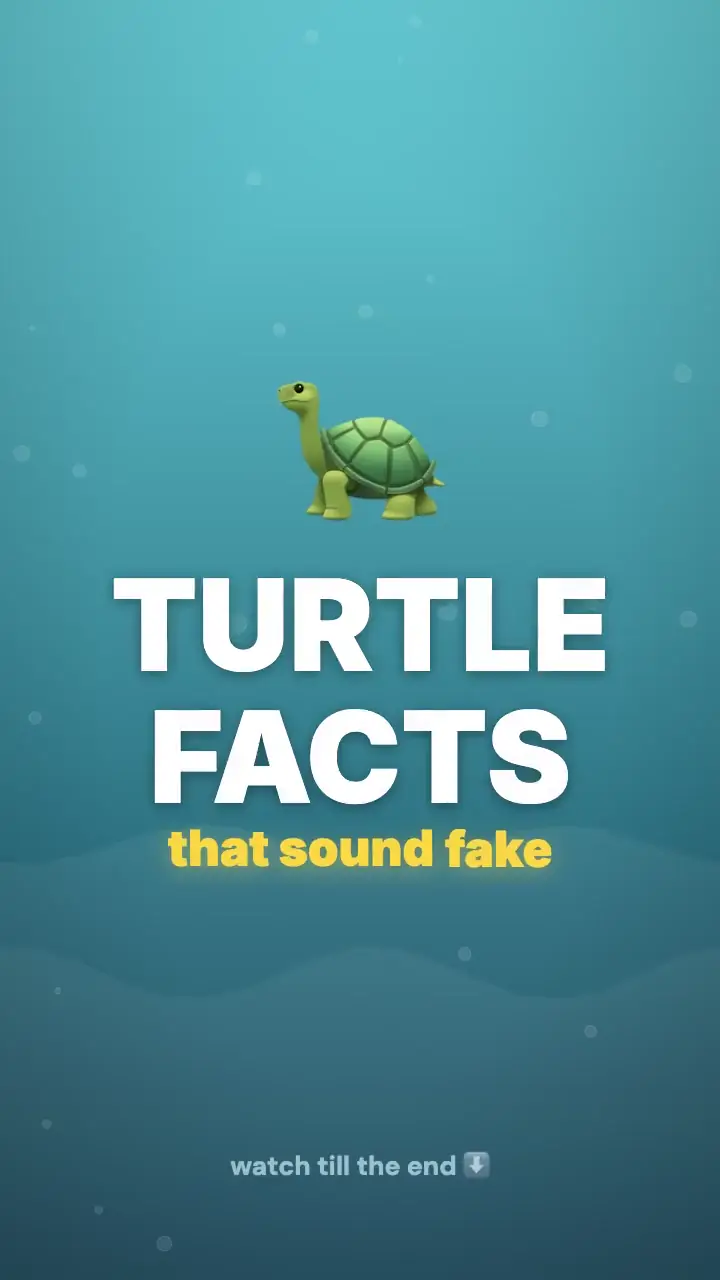
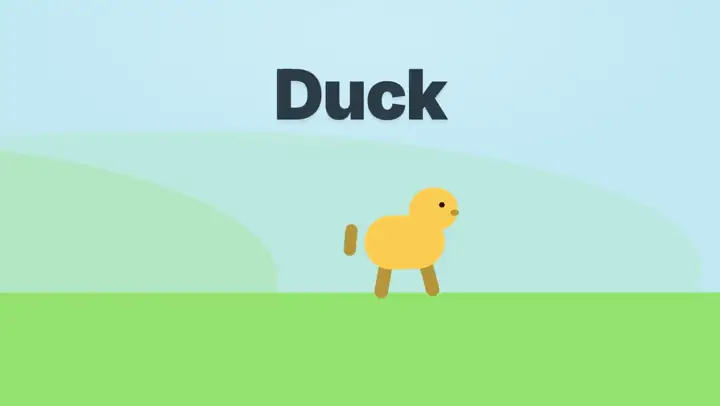
Each of these was a single line said to an agent, rendered by the same runtime Cursor would be driving. They change as you read — point at one to play it.






Using something else?
Any client that speaks MCP
The endpoint never changes. Only the file it goes in does — and for the other 7, it is written out.
- Claude CodeTerminal agent
- Claude DesktopDesktop app
- VS CodeCode editor
- WindsurfCode editor
- Codex CLITerminal agent
- Gemini CLITerminal agent
- WarpTerminal
- Something elseSame endpoint
One sentence to final animation.
Open Motion, click Connect MCP, and say one sentence to Cursor.